Wireless Tarantula Pro: 9 Mappable Buttons for Your Play

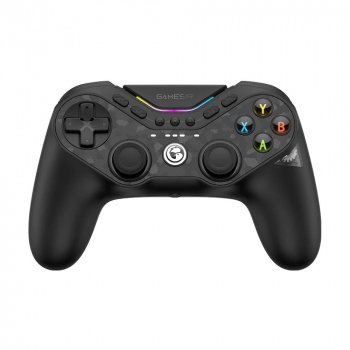
The Wireless Tarantula Pro Gamepad gives you a wireless way to make your controls more personal. Its nine mappable buttons offer room to assign actions around the way you like to play, whether you want a common command closer at hand or a menu that is easier to access. For more guidance, see Supported Devices – PadForge Documentation.
A personalized layout does not have to be complicated. We recommend starting with the actions you use most, trying a few assignments, and letting your preferences guide the rest. For further reading, see SDL Game controller button mapping issue.
A Wireless Gamepad Built for Personalization
The defining feature of the Tarantula Pro is its nine mappable buttons. Rather than relying entirely on a familiar default layout, you can consider where you would like certain commands to be and create a setup that feels more natural to you.
That flexibility can be useful across different kinds of games. In an action game, you might want a frequently used command within easy reach. In an exploration game, quick access to a map or inventory may be more appealing. The goal is not to copy someone else’s setup; it is to choose assignments that fit your own habits.
Available actions depend on the game, so think of the nine buttons as opportunities to personalize rather than a requirement to change everything. You can use only the assignments that make sense for you.
Put the Nine Mappable Buttons to Work
Begin by noticing which actions you reach for repeatedly during a normal play session. If one command feels awkward to access, consider assigning it to a mappable button. You can also look for actions that interrupt your flow simply because you have to stop and find them.
Here are a few starting points. The actions you can assign will depend on the game and its supported controls.
| Play style | Example assignment | Potential purpose |
|---|---|---|
| Action games | Frequently used action | Keep a common command within reach |
| Racing games | Camera control | Make view changes convenient |
| Exploration games | Map or inventory | Access a frequently used menu |
For action games, you might choose a command you use often and would prefer to reach without shifting your grip. For racing, a camera-related assignment may be useful if you regularly change your view. When exploring, consider whether opening a map or inventory is a frequent enough task to deserve its own convenient position.
Start with one or two assignments instead of filling every available button. Once those choices feel familiar, add another if you see a reason to do so. Leaving some buttons unassigned is perfectly reasonable if your current layout already works for you.
Make a Layout That Feels Natural
Think about your layout in groups. Related actions can be easier to remember when you place them in a way that makes sense to you. For example, you might keep menu-related commands together or give frequently used actions the positions you find easiest to reach.
Try not to change too many controls at once. A large set of changes can make it difficult to tell which assignments you like and which ones you want to replace. Give a new layout a little practice time, then revisit individual choices rather than rebuilding everything after one session.
Your comfort matters more than following a standard template. If reaching a particular button feels awkward, try a different assignment. The controls supported by each game should also guide your choices: a useful layout for one title may not be the best fit for another.
For a broader look at why flexible input options matter, the Xbox Accessibility Guideline on input discusses ways games can accommodate different player needs and preferences.
Explore the Tarantula Pro Gamepad
Our Wireless Tarantula Pro Gamepad with 9 Mappable Buttons is currently in stock for $111.17 USD. Price and availability are subject to change. If personalizing your controls appeals to you, you can view the product listing and decide whether this wireless gamepad belongs in your setup.
If you also like organizing time away from games, our Ultimate Productivity Blueprint is a separate digital guide covering goal setting, time management, and daily routines.
Before choosing, compare the product details with your daily routine, available space, care needs, and preferred setup. The strongest option is usually the one that fits the intended use clearly and remains simple to clean, store, and check before repeat use.
It is also worth checking measurements, material notes, included parts, and compatibility details so the item matches the way it will be used after delivery.
Before choosing, compare the product details with your daily routine, available space, care needs, and preferred setup. The strongest option is usually the one that fits the intended use clearly and remains simple to clean, store, and check before repeat use.
FAQ
How many mappable buttons does the Tarantula Pro gamepad have?
The Wireless Tarantula Pro Gamepad has nine mappable buttons.
What actions should I map to the buttons?
Start with frequently used actions you would like to reach more conveniently. Your choices should reflect your preferences and the controls available in each game.
Is the Tarantula Pro gamepad wireless?
Yes, the Tarantula Pro is listed as a wireless gamepad.













Leave a comment